
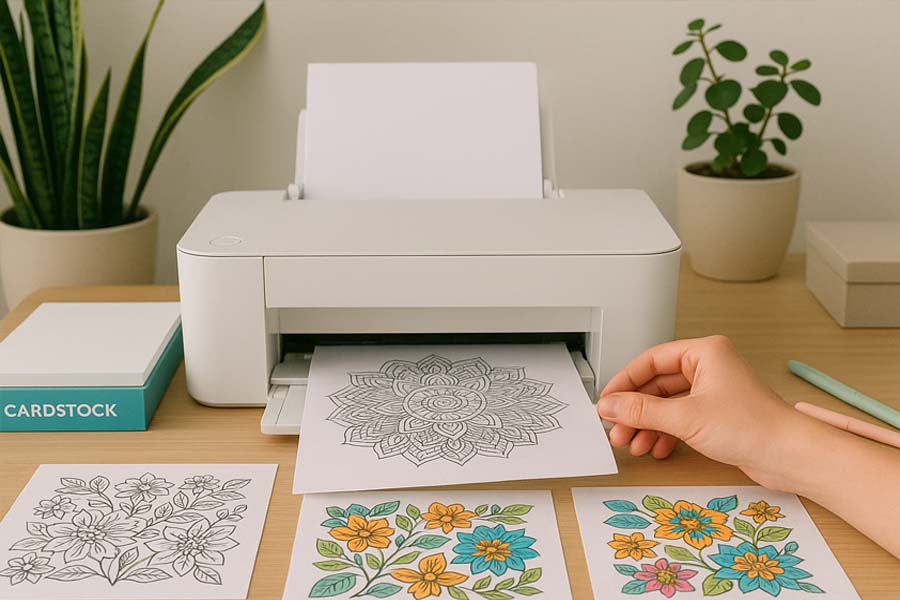
Nothing interrupts a great coloring session faster than uneven prints or washed-out lines. The good news is that you don’t need professional equipment to achieve excellent results at home—just the right supplies, a few printer adjustments, and a bit of patience.
This guide walks you through paper selection, printer settings, and basic color management so your pages look clean, vibrant, and ready for coloring with markers, crayons, or pencils.
1. Start With the Right Supplies
Before opening the print dialog, make sure your basics are set up correctly.
Inkjet printers generally offer better color depth and smoother gradients, while laser printers excel at crisp black-and-white line work. If you plan to color with alcohol markers, pigment-based inks are recommended, as they are more resistant to smudging.
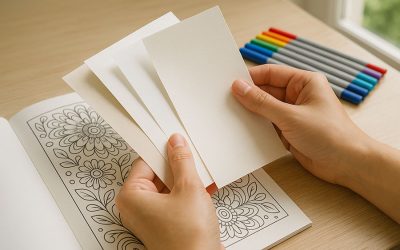
For paper, uncoated cardstock in the 120–160 gsm (32–43 lb text) range works well for most home printers. If you prefer colored pencils, premium matte paper provides a subtle texture that grips pigment nicely.
Quick checklist:
- Printer type: Inkjet for color, laser for sharp line art
- Ink: Pigment-based for markers, dye-based for crayons and pencils
- Paper weight: 120–160 gsm for everyday use; heavier stock for display pages
2. Calibrate Your Screen and Printer
Color mismatches often happen when screen and printer profiles don’t align. Use your operating system’s built-in color calibration tool and select the appropriate ICC profile provided by your printer manufacturer.
If available, enable “High” or “Best” quality mode in your printer settings. Running a nozzle check and print-head alignment helps prevent faint horizontal lines or uneven ink coverage.
3. Adjust Your Print Settings
When printing, pay attention to these options:
- Paper type: Match it exactly to the paper you’re using
- Quality: Choose “High” or “Best” for final prints
- Scaling: Use “Actual Size” when precise margins matter
- Orientation: Double-check portrait vs landscape
- Borderless printing: Optional, but note that some printers slightly enlarge the image
4. Always Do a Test Print
Before using premium paper, print a test page on regular paper. Check for:
- Blurry outlines
- Washed-out colors
- Cropped edges
Small adjustments here can save ink, paper, and frustration later.
5. Managing Ink Bleed and Smudging
If ink spreads along paper fibers:
- switch to smoother paper
- reduce ink density in advanced settings
For marker-friendly pages, allow prints to dry for several hours (or overnight) before coloring. Placing scrap paper underneath helps protect surfaces from bleed-through.
6. Specialty Paper Tips
For watercolor effects, use 200–240 gsm cold-press paper in an inkjet printer with rear feed. Select a fine-art or heavy paper setting and feed one sheet at a time.
For vellum or specialty media, choose the appropriate paper type in printer settings and extend drying time.
7. Double-Sided Printing Without Show-Through
If printing on both sides:
- print the lighter side first
- allow full drying time
- reload carefully according to your printer’s duplex instructions
Heavier paper (160 gsm or more) reduces ghosting.
8. Save Ink Without Sacrificing Quality
- Print in batches to reduce cleaning cycles
- Use preview mode at 100 % zoom
- Replace low cartridges promptly to avoid dull colors
9. Troubleshooting Common Issues
- Banding: Clean print heads and increase quality settings
- Paper jams: Reduce stack size and use rear feed for cardstock
- Color shifts: Replace nearly empty cartridges together
10. Storing and Protecting Your Prints
Handle fresh prints by the edges and store them flat in a folder or binder. For travel or long-term storage, protective sleeves help prevent creasing and smudges.
Final Notes
Print quality depends on your printer model, ink type, paper choice, and settings. Results may vary from one setup to another, but with small adjustments, most home printers can produce beautiful coloring pages.
Once you find a setup that works well for your equipment, keep a note of the settings—it’ll save time next time. Then enjoy the best part: coloring.







0 Comments